Cool Mesh Ergonomic Office Chair: Lumbar, Headrest, 2D Arms
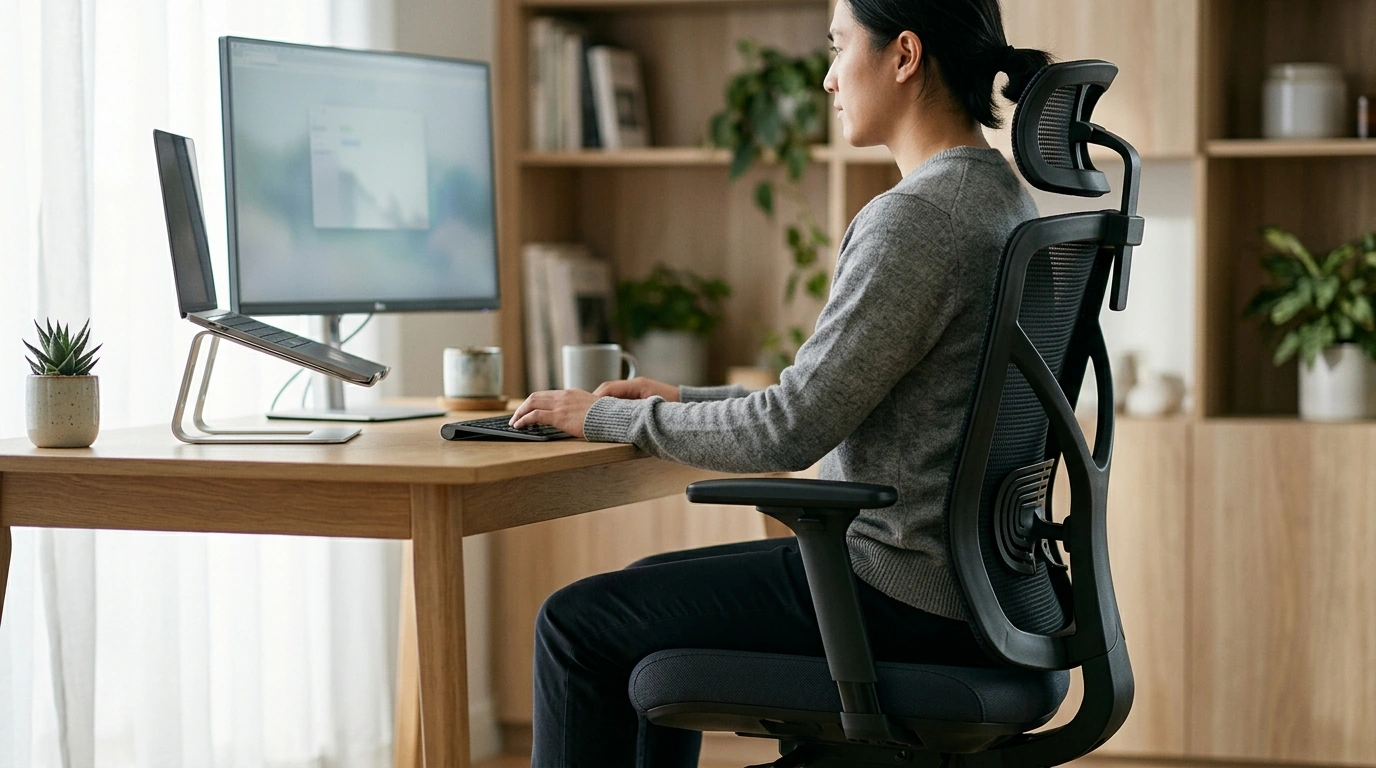
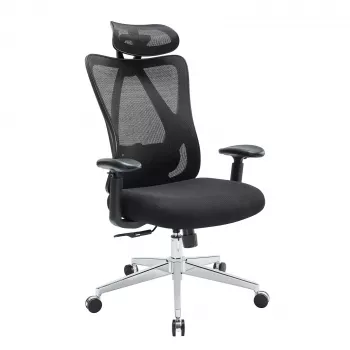
Ergonomic Mesh Office Chair with Lumbar Support, Adjustable Headrest & 2D Arms
Long desk hours call for a chair that keeps the spine supported, shoulders relaxed, and airflow moving. This mesh office chair pairs breathable materials with targeted lumbar support, an adjustable headrest, and 2D armrests to help maintain a comfortable, upright posture through work sessions, study blocks, and gaming marathons.
What makes this chair a strong everyday upgrade
When a chair is used daily, the “small” features quickly become the difference between feeling fine at 10 a.m. and feeling stiff by late afternoon. This design focuses on the areas most people notice first: heat buildup, low-back fatigue, neck tension, and arm positioning.
- Mesh back designed to promote airflow and reduce heat buildup during long sits
- Lumbar support intended to encourage a neutral lower-back curve rather than slouching
- Adjustable headrest to reduce neck strain when leaning back or taking short breaks
- 2D armrests (height and angle/side adjustment) to help align forearms with the desk surface
- Balanced feature set for home offices, apartments, dorm desks, and shared workspaces
If you’re upgrading from a dining chair or a basic task chair, the biggest day-one change is typically how much easier it feels to sit back fully—rather than perching forward and gradually collapsing into a rounded posture.
Lumbar support: how it helps comfort and posture
The lumbar area (lower back) naturally curves inward. Over time, many seated positions flatten that curve, especially when the pelvis rolls backward and the mid-back rounds. A supportive lumbar zone helps “remind” the body to stay stacked and upright.
- Supports the natural inward curve of the lower spine, which can reduce fatigue from prolonged sitting
- Works best when hips are back in the seat and the backrest makes consistent contact through the mid-back
- A supportive lumbar zone can make it easier to keep the chest open and shoulders stacked over hips
- For best results, pair lumbar support with proper seat height so knees stay close to a right angle and feet rest flat
One practical cue: if you notice you’re sliding forward to “get away” from the backrest, the setup likely needs tweaking (seat height, desk distance, or lumbar contact). For broader workstation guidance, the NIOSH Computer Workstations guidance and Cornell’s ergonomics resources are helpful references.
Adjustable headrest: dialing in neck and upper-back relief
A headrest is most useful when it supports breaks in posture—those moments between tasks where you recline slightly, take a call, or pause to think. The goal is support without pushing the head forward.
- A headrest can reduce tension by supporting the head when reclining or pausing between tasks
- Adjust to meet the curve at the base of the skull rather than pushing the head forward
- Useful during calls, reading, and short recline breaks—especially for users who tend to crane the neck toward screens
- If wearing headphones often, set height and angle so the headrest doesn’t force the head into an awkward position
A quick fit check: recline a touch, let the head settle back, and confirm your chin isn’t jutting upward or forward. If it is, lower or angle the headrest until your neck feels long and neutral.
2D armrests: positioning for shoulders, elbows, and wrists
Armrests should feel like a light “landing spot,” not a shelf you press into. When armrests are too high, shoulders creep up; too low, the upper body leans and wrists tend to extend while typing.
- Armrests help when they allow elbows to rest lightly at the sides without shrugging the shoulders
- Height adjustment can bring forearms level with the desk to reduce wrist extension while typing
- Angle/side adjustment can accommodate different keyboard widths and mousing positions
- For tasks needing close desk access, armrests should allow the chair to pull in without forcing the user to reach
For compact desks, armrest adjustments can be the difference between sitting close (with relaxed shoulders) and hovering forward (with tension building in the neck and upper back).
Breathable mesh feel and daily comfort
Fit and setup checklist (quick reference)
| Adjustment area | What to aim for | Common sign it needs tweaking |
|---|---|---|
| Seat height | Feet flat; knees near 90°; hips slightly above knees if possible | Legs dangle or thighs slope upward |
| Lumbar contact | Support fills the lower-back curve without pressure points | Slouching or feeling “pulled forward” |
| Armrest height | Elbows supported lightly; shoulders not raised | Shoulder tension or wrists bent up/down |
| Headrest position | Supports base of skull during recline; neutral neck | Chin jutting or neck pushed forward |
| Desk distance | Chair pulls in close; forearms reach keyboard without leaning | Leaning toward the desk or hovering shoulders |
Assembly, care, and durability habits
Who this chair tends to suit best
In-stock picks to round out your workspace
- Ergonomic Mesh Office Chair with Lumbar Support, Adjustable Headrest & 2D Arms
- Compact 400W Mini Juicer with 16oz Cup – Easy & Efficient Fruit Juice Extractor
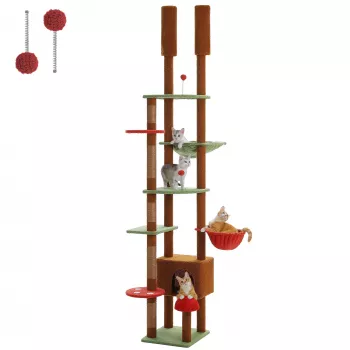
- 5-Level Cat Tree with Large Hammock, Scratching Posts, and Cozy Condo for Indoor Cats
FAQ
How should the lumbar support feel when it’s set correctly?
It should feel like gentle, even contact that fills the lower-back curve without sharp pressure. The best setting encourages you to sit back in the seat instead of forcing an exaggerated arch.
Do 2D armrests help with wrist and shoulder discomfort?
They can, when adjusted so your shoulders stay relaxed and your forearms are level with the desk. Keep wrists neutral while typing, and make sure the armrests don’t prevent you from pulling close enough to the desk.
Is a mesh chair comfortable for long hours compared with cushioned chairs?
Mesh often feels cooler over long sessions and provides a responsive, supportive backrest. Long-hour comfort still depends on fit, adjustment (seat height, lumbar, arms, headrest), and a desk setup that doesn’t make you reach forward.







Leave a comment